Showing posts with label Text Filed. Show all posts

Monday, December 31, 2012

Using Robotium to test Android “Text Fields”

Robotium supports various functions to test Android single and multi line text fields.
The following are few APIs supported by Robotium to test the Text Fields,
  • searchEditText(String text)
  • clickOnEditText(int index)
  • clearEditText(int index)
  • typeText(int index, String text)
  • enterText(int index, String text)
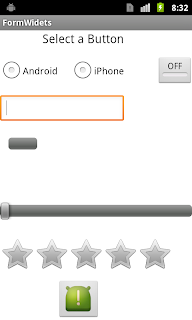
Let us write a test case for the Sample project shown on the right side,

Test case for verifying the Text Fields :

Steps :
  1. Wait for the activity to launch
  2. Enter a text in the Text Field
  3. Verify the text entered in the Text Field
  4. Clear the Text Entered in the Text Field
  5. Enter a new Test again and Verify the text entered.
Test Code:
   1: public void testEditField() throws Exception {

   2:    solo.waitForActivity("MainActivity");

   3:             

   4:    solo.clickOnEditText(0);

   5:    String strInput = "Sample code 1";

   6:    solo.enterText(0, strInput);

   7:    boolean actual = solo.searchEditText(strInput);

   8:    assertEquals("text entered is not matching",true, actual);

   9:  

  10:    solo.clearEditText(0);

  11:    strInput = "Sample code 2";

  12:    solo.typeText(0, strInput);

  13:    actual = solo.searchEditText(strInput);

  14:    assertEquals("text entered is not matching",true, actual);

  15:  }

Explanation:
  1. solo.waitforActivity( ), is to wait for the activity to launch

  2. Enter Text in the Text Field :  to enter a text in the Text filed, both ‘solo.enterText()’ and ‘solo.typeText()’ can be used.

  3. in ‘enterText(int index, String text)’,  index is the index of the Text Field.

    • if multiple Text Fields exists, first one will be assigned an index of 0, second one will get an index 1 and so on..  index increases from Top to Bottom or Left to Right

    • Verify the Text Entered :  to verify the text contained in the Text Filed, ‘solo.searchEditText()’ can be used. it returns True, if pattern matches otherwise return False

  4. Clear the Text in the Text Field : to clear the Text exist in the Text Field, ‘solo.clearEditText()’ can be used.

  5. ‘assertEquals()’, can be used to assert True/False

Thursday, December 27, 2012

Simple Text Search using Robotium

Robotium supports Various APIs to test various Android UI functionalities. refer the documentation for the complete list of APIs.
I will explain the usage of the Robotium APIs in real time using a sample android application.

See the sample application shown on the right side, which contains few basic elements like "Text Field, Radio buttons, Toggle button, Text Field/Edit box, Progress bar, Seek bar, Rating bar and an Image Button".

to get familiar with the APIs, let us write test cases for this application.


Test case for Simple text search:

Steps :

  1. wait for the activity
  2. Search for the Text
  3. Assert True/False based on the pattern match

Test code:

   1: public void testSimpleTextSearch() throws Exception {

   2:         solo.waitForActivity("MainActivity");

   3:         boolean actual = solo.searchText("Select a Button");

   4:         boolean expected = true;

   5:         assertEquals("Required Text not found",expected, actual);

   6: }

Explanation :

  1. Wait for the Activity : this an important step to add always in the code, before writing test steps. 

    • Every time before running the test case, Robotium will freshly opens the Activity and starts executing test steps.
    • If activity takes more time to launch, Robotium may malfunction thinking that the activity is opened
    • for the best practise, it is always a good idea to wait for the activity before Executing the test steps
    •  solo.waitforActivity( ), wait for the Activity to open

  2. Search for the Text :  Robotium supports different APIs to search for a Text pattern, single match and Multiple match etc ..

    • I will provide more details on using other APIs in coming sessions, Now we will look at simple search pattern
    • solo.searchText( ), will look for the String in the whole screen. It may be a Text View, a Toast, a List item or an Button Text etc..

  3. Assert True/Falseassertion can be done using “assertEquals( )” statement, which will compare the actual and expected values. 

    • in the above code, first argument is the message to display when assertion fails
    • second argument is the expected value
    • third argument is the actual value